Page layout
This tab contains all the page layout options.
Options
This is the list of all available options in the page layout tab and their descriptions.
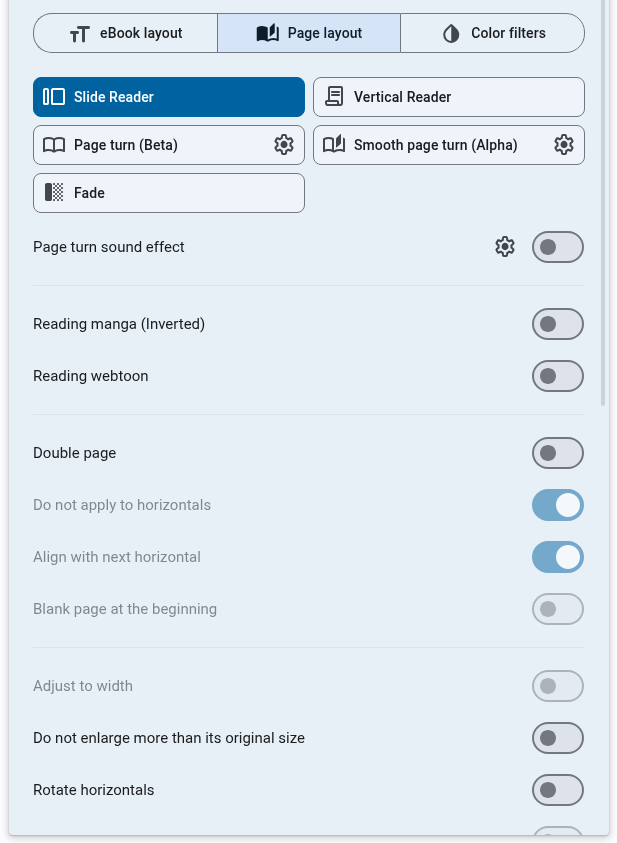
Turning page method
OpenComic has some modes/effects when turning the page.
- Slide Reader: The page slides to the next page.
- Vertical Reader: The page slides vertically to the next page (Scrolling).
- Page turn (Beta): The page turns like a physical book.
- Smooth page turn (Alpha): The page turns like a physical book but with a smoother animation.
- Fade: The page fades to the next page.
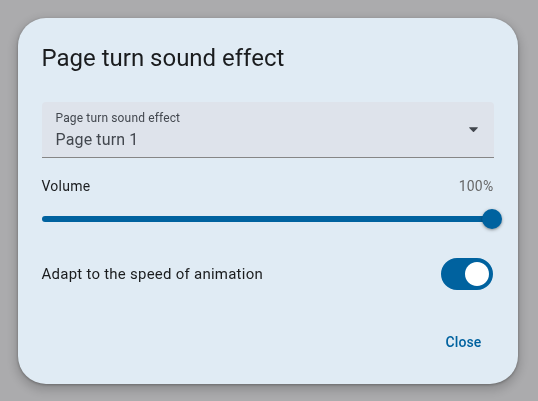
Page turn sound effect
You can play multiple sound effects when turning the page.
Reading manga (Inverted)
Inverts the page layout to read manga from right to left. this not applies to the Vertical Reader mode.
Reading webtoon
This mode applies optimized settings for Webtoon reading. It also adjusts the Vertical Reader scrolling steps (used with the Next/Prev keys), focusing on 70% of the screen height per step.
OpenComic can also automatically detect some Webtoon-style content and apply this mode for you when that setting is enabled.
- Double page: Off
- Adjust to width: On
- Do not enlarge more than its original size: On (Can be modified)
- Show only one page at a time: Off
- Vertical margin: 0px
These options cannot be modified when Webtoon mode is enabled. To modify any of them, you will need to disable Webtoon mode and apply all options manually except for the one you want to change.
Double page
This shows two pages side by side.
Do not apply to horizontals
Not apply the double page in the horizontal images.
Align with next horizontal
When this option is enabled, OpenComic adds a blank page if the number of vertical images before a horizontal image is odd. This ensures proper alignment between vertical and horizontal images.
Blank page at the beginning
This adds a blank page at the beginning of the reading.
Ajust to width
In Vertical Reading this force all images to ajust to the width of the screen.
Do not enlarge more than its original size
This prevents images from being enlarged beyond their original size, ensuring they are displayed at their native resolution.
Show only one page at a time
In Vertical Reading, if the image height are lower than the screen height, this option will show only one page at a time, centering it vertically.
Rotate
This rotates images (This rotation is not applied to horizontal images).
Rotate horizontal
This rotates horizontal images.
Horizontal margin
Sets the margin on the left and right sides of the image.
Vertical margin
Sets the margin on the top and bottom of the image.
Different in horizontals
This option allows you to set different margins for horizontal images compared to vertical images.
Horizontal margin
Sets the margin on the left and right sides of the image for horizontal images.
Clip horizontal
Clip (In percentage) the horizontal sides of the image to remove unnecessary parts, such as borders or margins.
Clip vertical
Clip (In percentage) the vertical sides of the image to remove unnecessary parts, such as borders or margins.
Delay in changing comics
This option sets a delay before changing to the Next/Prev comic.
This setting is no longer part of the page layout tab and is configured from the general settings area instead.
Animation speed
This option sets all animations speed (Next, Prev, Zoom, etc).